
 Document Capture Extention
On the page 'Role Explorer', you can find the following pages and reports for DCE (depending on your permissions)
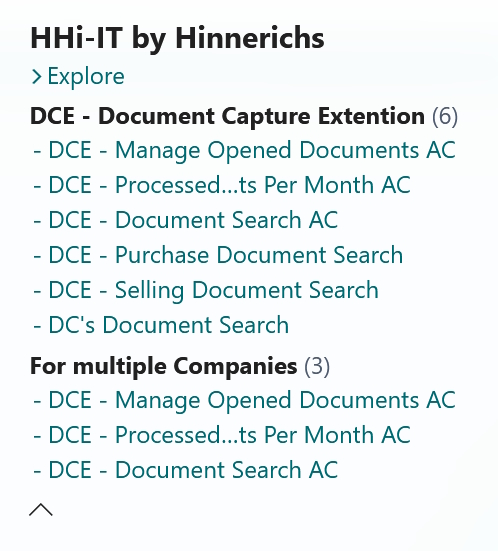
Generally, all pages and reports belonging to DCE begin with 'DCE'. Pages and reports ending in 'AC' are cross-company pages or reports.
All search functions are based on Continia's document processing. Anything that was not recognized during scanning cannot be found. Handwriting, special characters, and diacritical marks may cause problems. Multiple words (or rather parts of words) can be entered for each search. Upper and lower case letters are not taken into account. Searching for numbers often does not lead to the desired result, because only the exact spelling can usually be found. Example: The document contains '1.234,50€', so searching for '50€' will return a result, but searching for '1234.50€' will not, because the thousand separator is missing in the search.
The various search options are available to all 'DCE - Basic' users. All DCE document searches start when you select 'Start' from the menu or press 'F9'. This allows you to set all filters before the search begins.
DCE adds three additional search options to Continia's 'Document Search' page in the menu. Otherwise, nothing else has been changed here.
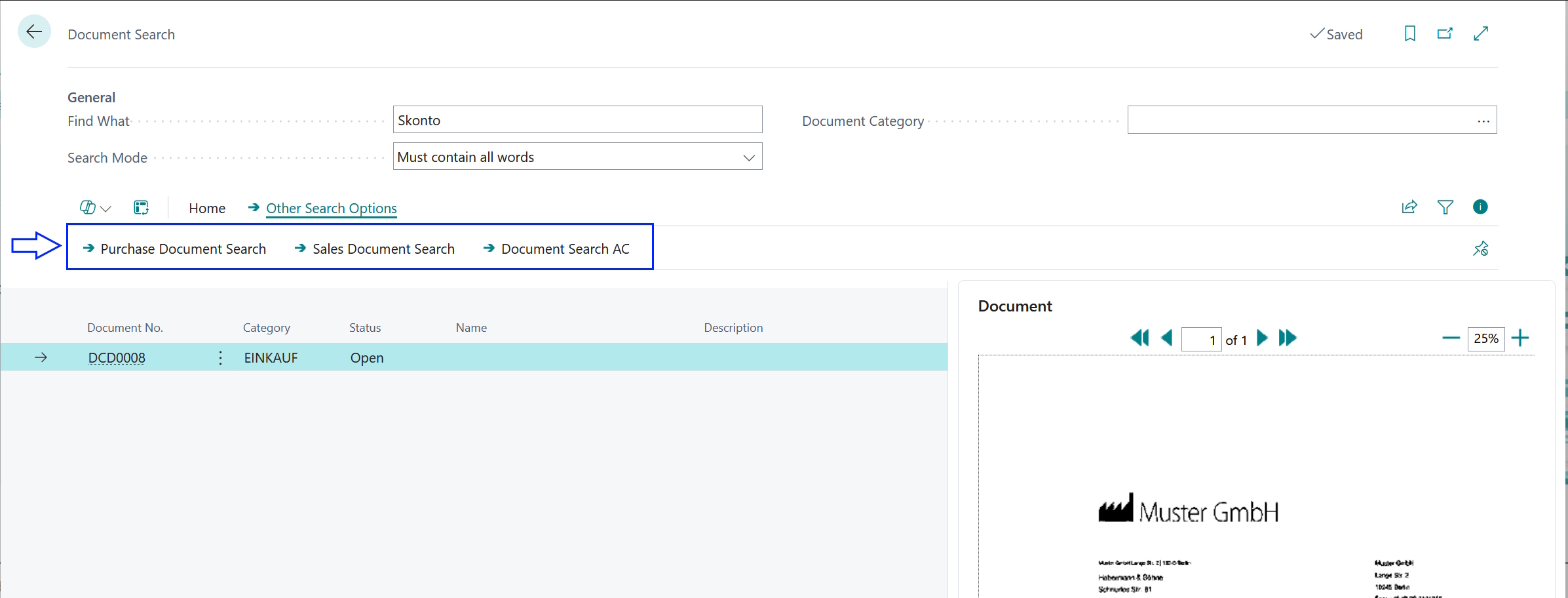
In the original, the search often starts as soon as you leave an input field. With DCE document searches, the search only starts when you select the 'Start' from the menu or press 'F9'.
With 'DCE - Document Search AC', you can search for documents across all companies.
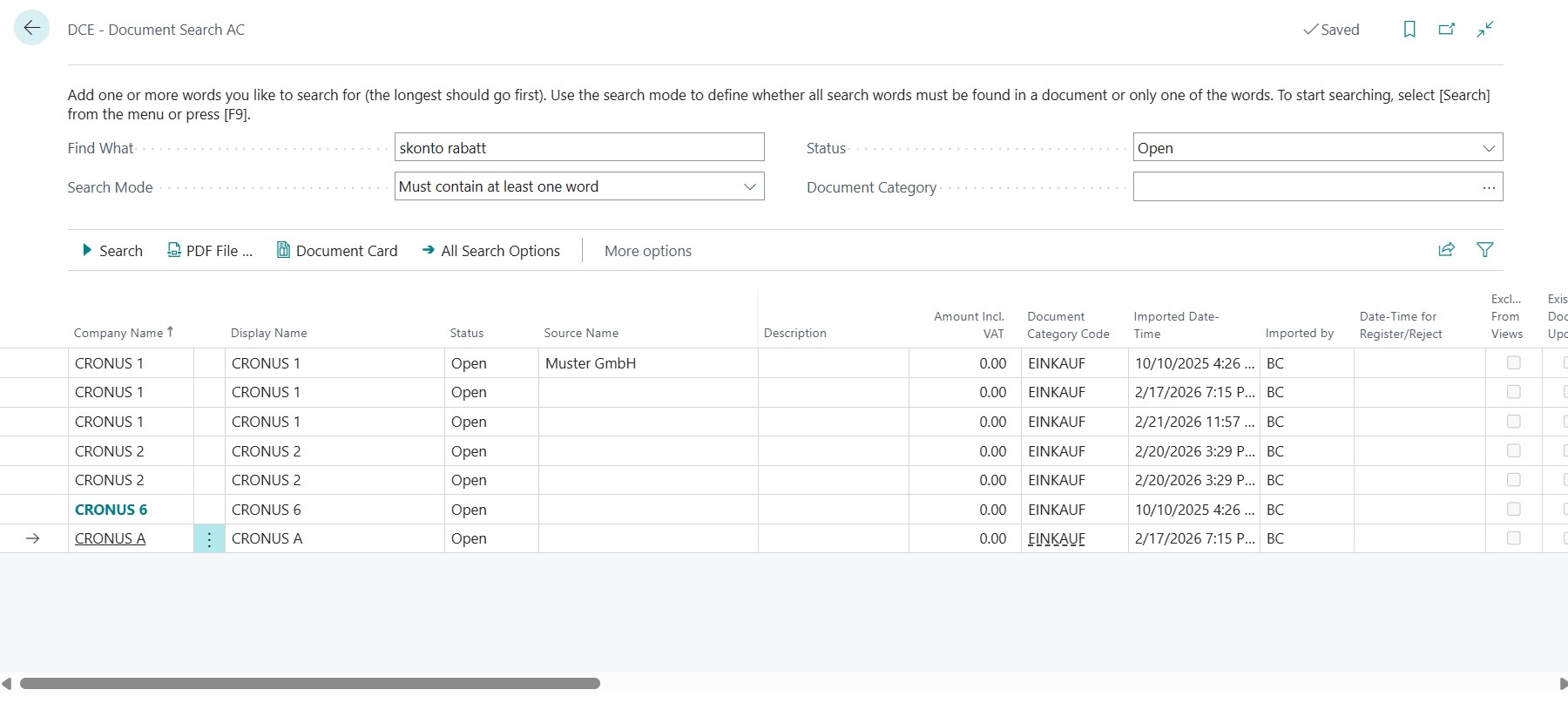
This search is useful, for example, for finding open discount invoices once or twice a day. Here, you can switch directly to the corresponding document card via the menu.
The search results are sorted in ascending order by 'Company name' and 'No.' (DC document number). The company currently being worked on is highlighted in color (here CRONUS 6).
The search result contains the companies for which the corresponding permissions are available during the search.
Depending on the number of companies and documents in the system and the selected search criteria, the search may take a long time.
This page is optimized for sales documents. Here, you can find much more information about a selected sales document in the fact boxes on the right-hand side of the screen.
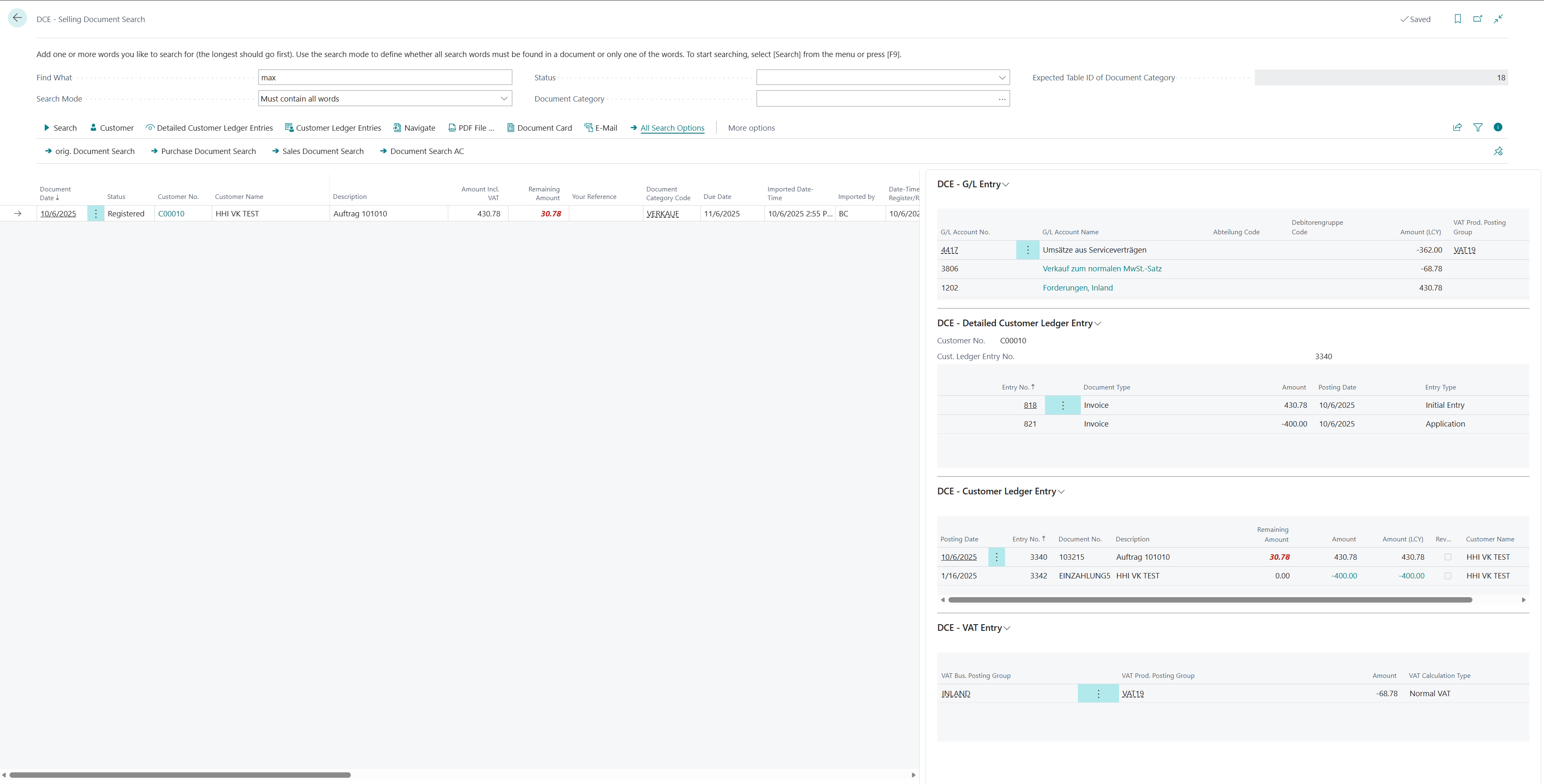
The search results are sorted in descending order by Document Date. This means that the most recent documents appear at the top of the list.
The menu can be used to access further important information about the associated customer or document.
The focus here is on purchase documents. The fact boxes also provide you with significantly more information about a selected purchase document.
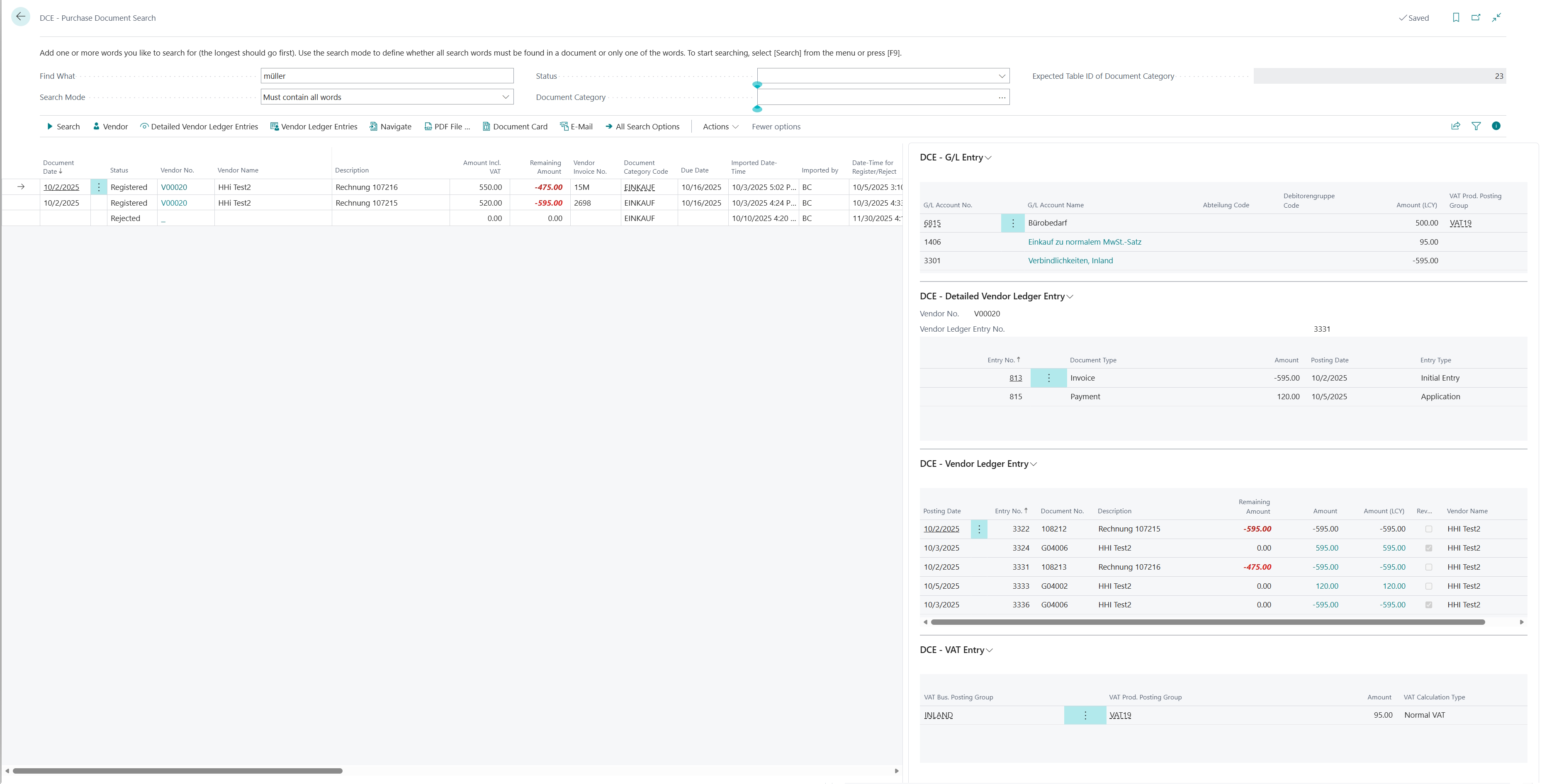
As with sales documents, the most recent documents appear at the top of the list.
The menu can be used to access further important information about the associated vendor or document.
In all three DCE document search options as well as on the Continia's “Document Journal” page, you can now use the new menu item [Auto PDF – ON] to display PDFs in a separate window, allowing you to view more of the PDF at once.
In the document journal, the PDF is displayed in the info box (on the right). Technically, it is not possible to expand this info box upward to see more of the PDF. While you can zoom in on the PDF, doing so reduces the visible area.
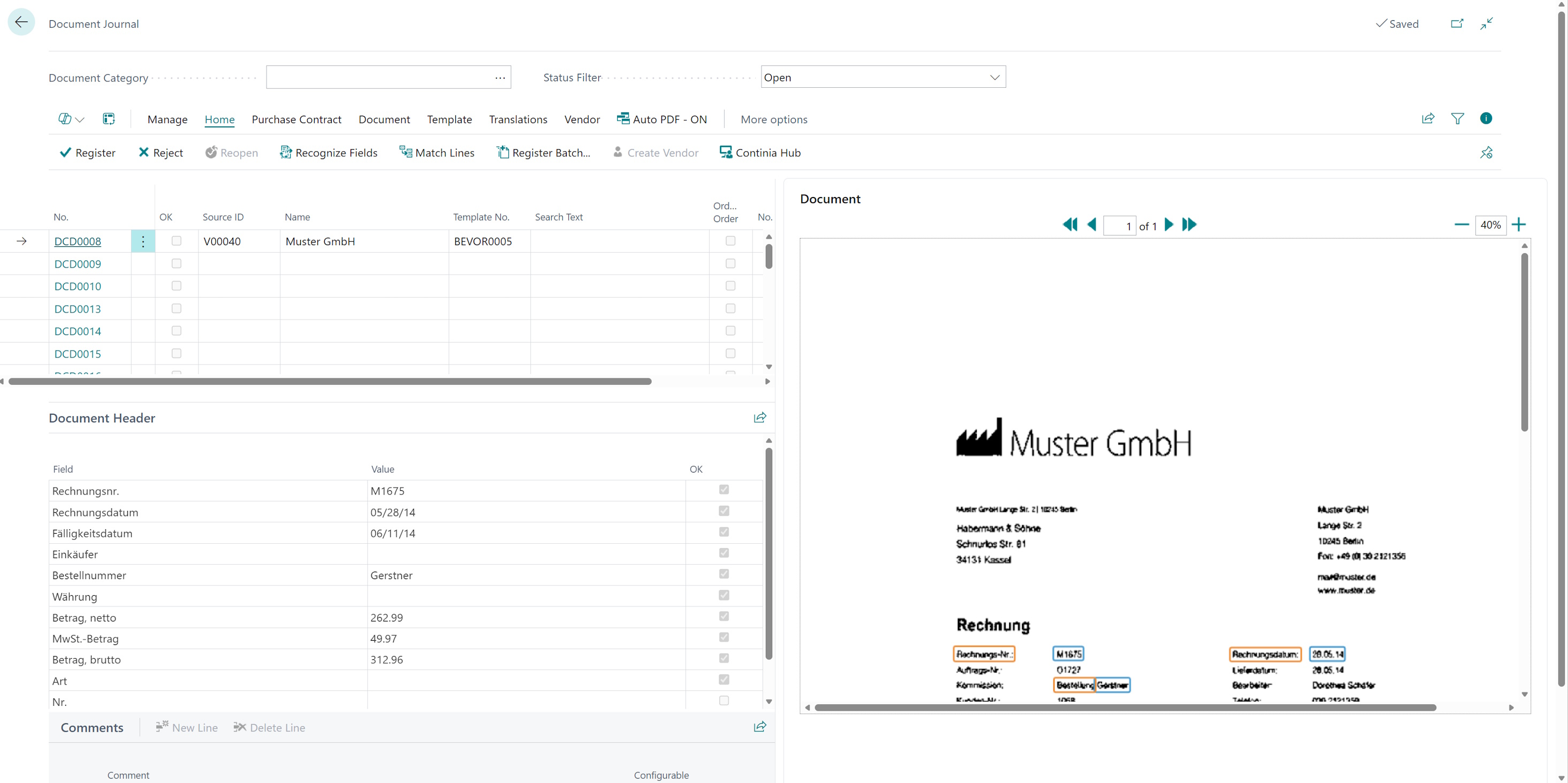
The problem can be solved by launching the application via [Auto PDF - ON] in a second browser window. Then, for example, both windows can be arranged side by side to provide a larger view of the PDF.
If you compare the previous image with the next one, you can easily see the difference.
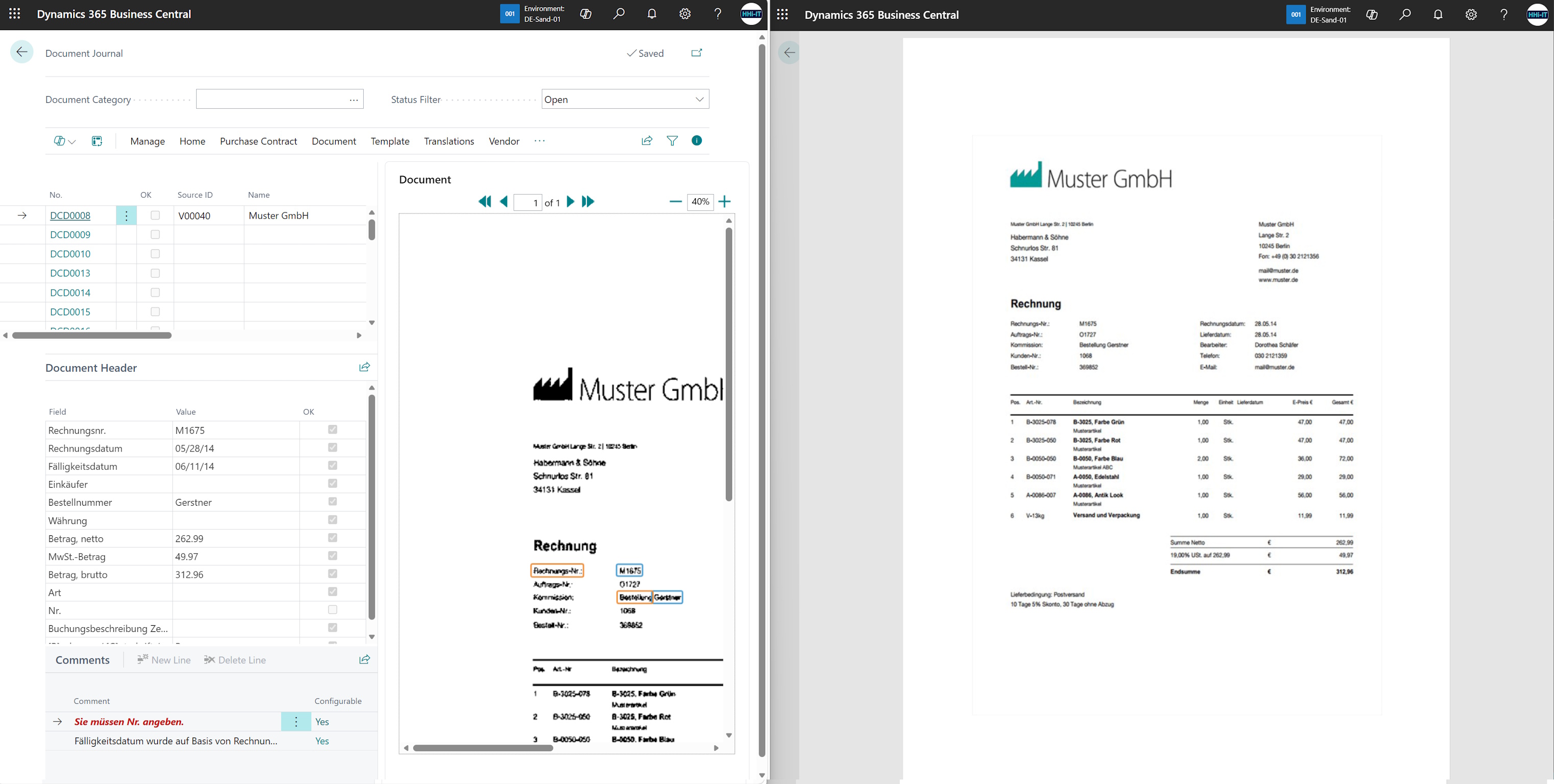
If you enable the view in a second window via the [Auto PDF - ON] menu item, you can position the new window where you can see it comfortably. This is particularly helpful, for example, when creating a new vendor, because the input mask for the vendor data is firmly positioned over the PDF and can obstruct the view of the necessary data. Now you can even scroll through the PDF using the second window.
If a different document is selected from the list of documents in the first window, the second window is also updated. This also works for cross-company document lists, such as on the Page 'DCE - Document Search AC'. You can turn this feature off by selecting [Auto PDF - OFF].
If the second window is not closed, and a document list is later opened in the first window that includes the [Auto PDF - ON] menu item, the existing second window will be used again for displaying the PDF after the [Auto PDF - ON] menu item is selected once again.
Depending on the size of the PDF, it may take a different amount of time to load the display.
On page 'DCE - Manage Open Documents AC', the open documents are counted per client and import date and provided as a list.
When this page is opened for the first time, the list is empty. Someone with permissions for all companies will find the submenus 'Reload Company Columns' and 'Delete' in the 'Actions' menu.
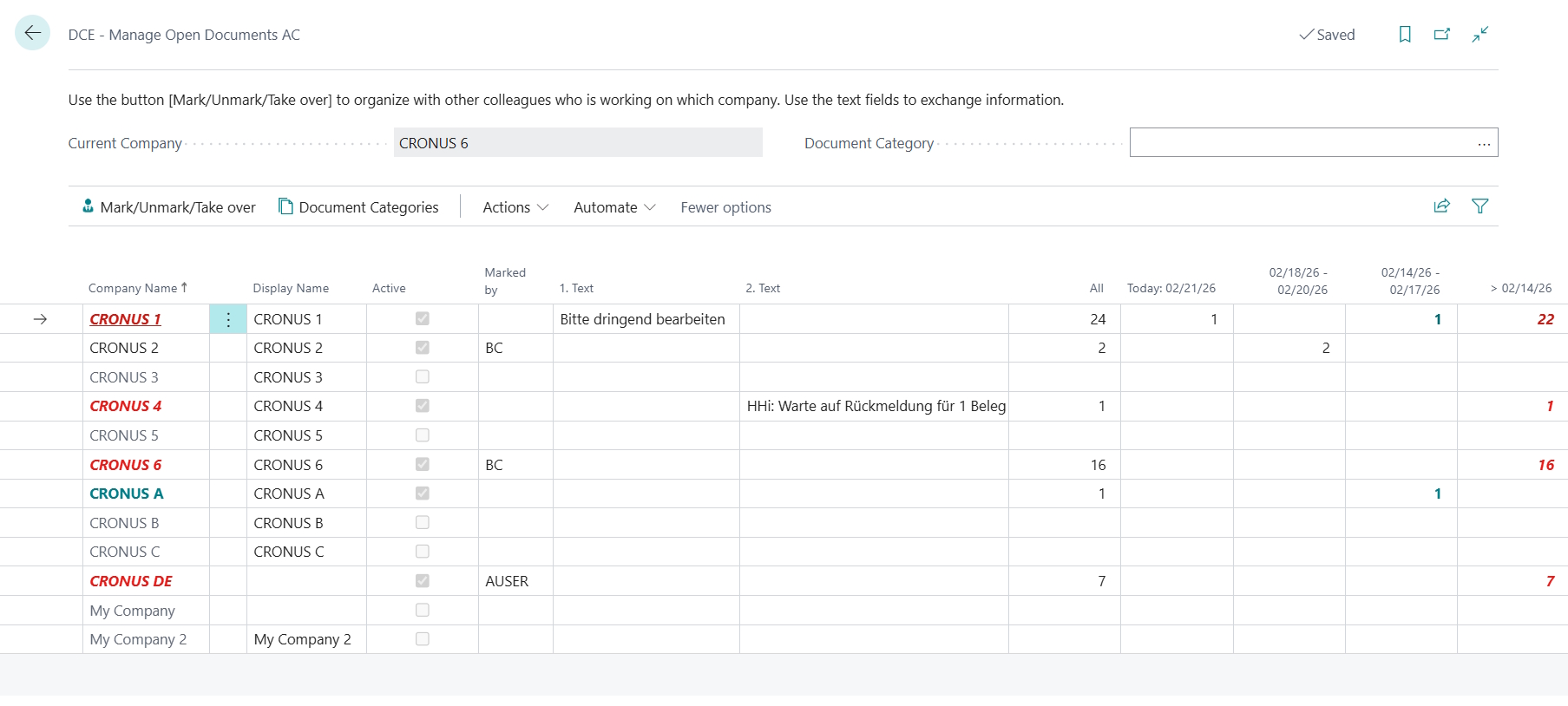
The list is created via 'Reload Company Columns'. Instructions or information about the companies can be stored here in the columns '1. Text' and '2. Text'. If new companies have been created or deleted in the system, the 'Reload Company Columns' action should be performed to update the list. The stored texts are not changed if the associated company has not been deleted. The 'Delete' action, on the other hand, deletes the entire list. If nothing has changed regarding the companies, the list can be updated by pressing 'F5'.
Above the menu, there is a note on how to use the page. Below that, the company in which the user is currently working is named. The display can be filtered to individual categories using the 'Document Category' selection list. The stored document categories of the current company serve as the basis for this.
The last five columns show the number of open documents per company. This makes it easy to see how long and how many open documents there are in each company. In addition, the color of the company changes if documents have been open for more than four days. The numbers are recalculated each time you refresh with 'F5'.
The menu item 'Mark/Unmark/Take over' can be used to save or delete your own abbreviation for a selected company. If the line has already been marked by someone else, you will be asked if you want to take over. This is solely information that is stored to simplify team organisation. An employee has the option of assigning one or more companies to themselves in order to signal to others that they are working on them. In this example, there are two users: ‘BC’ and ‘A USER’.
The 'Active' column indicates whether Document Capture has been activated in the company. If this is not the case, the row cannot be edited.
You can switch to the document category of the respective company using the 'Document Categories' menu item or the link behind the company name. From there, you can easily access the documents you want to edit.
If a user does not have authorization for a company or a company no longer exists, the Display Name shows '** ERROR **', 'All' is set to -1, and this line cannot be edited.
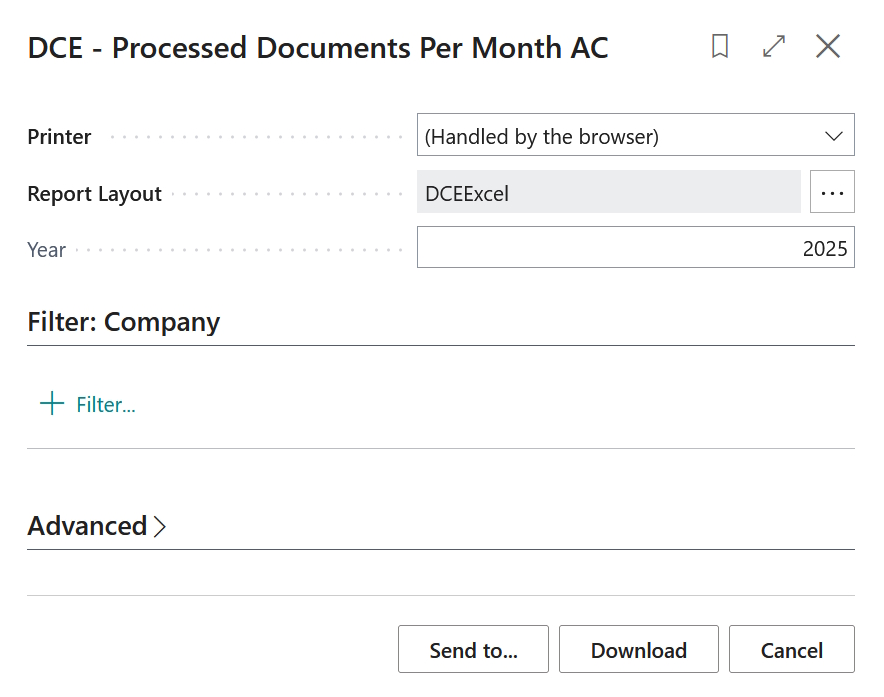
The report 'DCE - Processed Documents Per Month AC' generates a cross-company Excel annual report showing the number of registered documents per month. The approximate number of scanned pages can also be read.
On the request page, set the year for which you want to generate the report. Then press [Download].
Excel may open in protected view. The values transferred to Excel will only be displayed once the 'Enable editing' button has been pressed.
The first worksheet in the Excel file you created is [Processed Documents]. Here you will find the number of registered documents per month and per company:
![Worksheet [Processed Documents] of report 'DCE - Processed Documents Per Month AC'](/img/DCE/DCE_RepProcessedDocsAC_02_en-US.jpg)
The second spreadsheet is [Scanned Pages (aprox.)]. Here you can see the number of pages scanned per month and per company. If, for example, blank pages were deleted after scanning, the actual value is higher.
![Worksheet [Scanned Pages (aprox.)] of report 'DCE - Processed Documents Per Month AC'](/img/DCE/DCE_RepProcessedDocsAC_03_en-US.jpg)
Only those companies for which the corresponding permissions are available when the report is generated are listed.